

⚡ Quick Answer
To enter a fraction on the TI-84, press [ALPHA] + [Y=] to open the fraction template (n/d). Type the numerator, press the down arrow, type the denominator, then press [ENTER]. The calculator automatically simplifies the result. To convert a decimal to a fraction, press [MATH] → 1: ►Frac. To go from fraction to decimal, press [MATH] → 2: ►Dec. Keep reading for the full guide with examples for every situation.
Why the TI-84 and Fractions Can Be Confusing
Here is something I see all the time in my classes. A student types 3 ÷ 4 + 1 ÷ 2 into their TI-84 and expects to get 5/4. Instead they get 1.25 — or sometimes something completely wrong because they forgot about order of operations.
Fractions on a calculator are tricky because the calculator does not automatically know you are thinking in terms of fractions. Unless you tell it the right way, it might calculate something different than what you intended.
The good news is that the TI-84 Plus CE has a dedicated fraction template — a feature that lets you type fractions exactly the way they look on paper. Once you use it, you will never go back to guessing about parentheses.
There are two main ways to enter a fraction on a TI-84: (1) the fraction template using ALPHA + Y=, and (2) plain division using the ÷ key with careful parentheses. The template method is almost always the better choice.
Method 1: Using the Fraction Template (Best Way)
The fraction template is built into every TI-84 Plus CE. It shows you a visual fraction box — numerator on top, denominator on the bottom — just like writing it by hand. This is the method I recommend to every student I teach.
How to Open the Fraction Template
Press [ALPHA] + [Y=]
Press the ALPHA key (green key, left side). While still holding it in your mind, press Y= (top-left button). This opens the FRAC shortcut menu. Option 1 is n/d — the standard fraction template.
Select 1: n/d
Press 1 or just press ENTER. A fraction box appears on your screen — a small rectangle with a horizontal line through the middle. Your cursor starts in the top box, which is the numerator.
Type the Numerator
Type the number (or expression) that belongs on top. For example, type 3 for the fraction 3/4. The cursor stays in the numerator box.
Press the Down Arrow to Move to the Denominator
Press the ▼ (down arrow) key. The cursor moves to the bottom box — the denominator. Now type the bottom number. For example, type 4 for the fraction 3/4.
Press [ENTER] to Calculate
Press ENTER. The TI-84 evaluates the fraction and displays the result. If the fraction simplifies to a whole number or simple fraction, it shows that. If not, it displays the decimal equivalent — you can convert it back, which we will cover next.
Quick button summary: ALPHA + Y= → 1 → type numerator → ▼ → type denominator → ENTER
Example: Entering ¾ Using the Template
Notice the result shows as 3/4 — an actual fraction, not a decimal. That is the power of the template method. The calculator knows you are working with fractions and keeps the answer in that form.
Note on older TI-84 models: The ALPHA + Y= shortcut works on the TI-84 Plus CE and TI-84 Plus CE-T. On the older TI-84 Plus (black and white screen), go to MATH → scroll right to FRAC menu → select n/d. The process is the same, just a different way to reach it.
Method 2: Using the Division Key (With Care)
The second way is simpler but more dangerous — you type fractions as division. For a simple single fraction, this works just fine. For complex expressions, it causes problems.
Simple Case — Works Fine
To enter 3 ÷ 4, just press 3 → ÷ → 4 → ENTER. You get 0.75. Then press MATH → 1: ►Frac → ENTER to convert it back to 3/4.
Dangerous Case — Parentheses Required
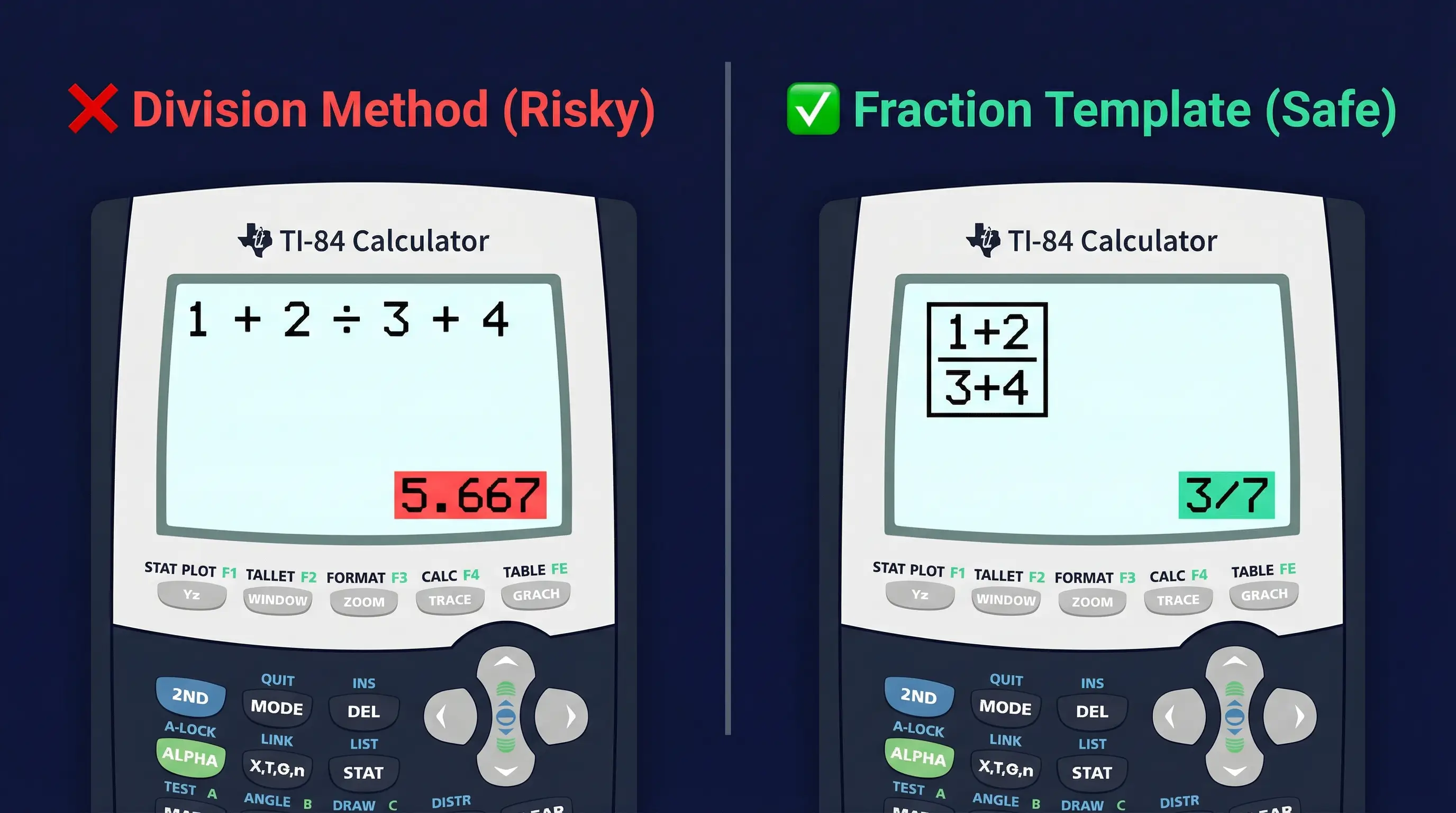
This is where students lose marks. Suppose you want to calculate:
If you type 1 + 2 ÷ 3 + 4, the TI-84 follows order of operations and calculates 1 + (2÷3) + 4, which is completely wrong. You must wrap both the numerator and denominator in parentheses:
My strong advice: Any time your numerator or denominator has more than one term, always use the fraction template instead. The template method eliminates this problem entirely — no parentheses needed, no order-of-operations risk.
How to Simplify Fractions on TI-84
The TI-84 simplifies fractions automatically when you use the fraction template. If you enter 6/8, it returns 3/4. If you enter 15/25, it returns 3/5. The calculator does the GCD (greatest common divisor) work for you.
But sometimes you end up with a decimal — maybe from a calculation, or from someone else's work. Here is how to convert it to a simplified fraction:
Converting a Decimal to a Simplified Fraction
Get Your Decimal Result on Screen
Do your calculation normally. Say you calculated something and the result is 0.375. It is sitting on screen as your last answer (Ans).
Press [MATH]
Press the MATH button. You see a menu with several options. The very first option — 1: ►Frac — is what you need.
Press 1 (or ENTER) to Select ►Frac
Press 1 or just press ENTER. The text ►Frac appears on the home screen. Now press ENTER again to execute it.
Read the Simplified Fraction
The decimal converts to the simplest fraction. 0.375 becomes 3/8. 0.6 becomes 3/5. 0.333... becomes 1/3. The TI-84 always gives you the most reduced form.
You can also type a fraction directly into the ►Frac conversion. On the home screen, type your unsimplified fraction using the template (like 24/36), then press MATH → ►Frac → ENTER. Result: 2/3. Fastest way to simplify any fraction.
When ►Frac Still Shows a Decimal
Sometimes even after pressing ►Frac you still see a decimal. This happens when:
- The number is irrational — like √2 or π — which cannot be written as a fraction at all.
- The denominator is too large for the TI-84 to display (over around 10,000 in some cases).
- The decimal is a non-terminating, non-repeating number — by definition, not a fraction.
If ►Frac gives you back just the decimal, accept it — that number cannot be expressed as a simple fraction.
Converting Fractions to Decimals on TI-84
Sometimes you need to go the other direction — from a fraction to a decimal. This comes up constantly in science, engineering calculations, and any time you need to compare values or plug numbers into a formula.
Method 1: Use ►Dec from the MATH Menu
After you have a fraction on screen as a result, press:
Method 2: Divide Directly
Even simpler — just enter the fraction as a division and press ENTER. No menus needed:
You can also toggle between fraction and decimal quickly. After a result appears, press MATH → 1: ►Frac or 2: ►Dec to flip between the two forms without retyping anything.
How to Enter Mixed Numbers on TI-84
Mixed numbers are numbers like 3½ or 2¾ — a whole number part plus a fraction part. The TI-84 does not have a single dedicated button for mixed numbers (the way it does for regular fractions), but there is a clean way to handle them.
Option A: Convert to an Improper Fraction First
This is the safest method. Convert your mixed number to an improper fraction before you type it in.
For example, 3½ = 7/2. Just enter 7/2 using the fraction template. Same result, no confusion.
Option B: Enter as "Whole + Fraction"
You can also enter the whole number and fraction separately, adding them together. The TI-84 will handle this correctly:
Option C: The Un/d Template (TI-84 Plus CE)
On the TI-84 Plus CE, there is also a Un/d template that mimics mixed number format. Press ALPHA + Y=, then select 2: Un/d. This gives you three boxes: U (whole number), n (numerator), and d (denominator). Enter each part separately:
All three options give the same correct result. My personal recommendation for students: Option A (convert to improper fraction first) is the fastest and least error-prone. You do the one mental step of conversion, then type a simple fraction.
Fraction Arithmetic on TI-84 (Add, Subtract, Multiply, Divide)
Once you know how to enter fractions, doing arithmetic with them is straightforward. The TI-84 handles all four operations perfectly — and gives you the answer in simplified fraction form.
Adding Fractions
Enter the first fraction using the template, press +, then use the template again for the second fraction, then press ENTER. The TI-84 finds the common denominator and simplifies.
Subtracting Fractions
Multiplying Fractions
Dividing Fractions
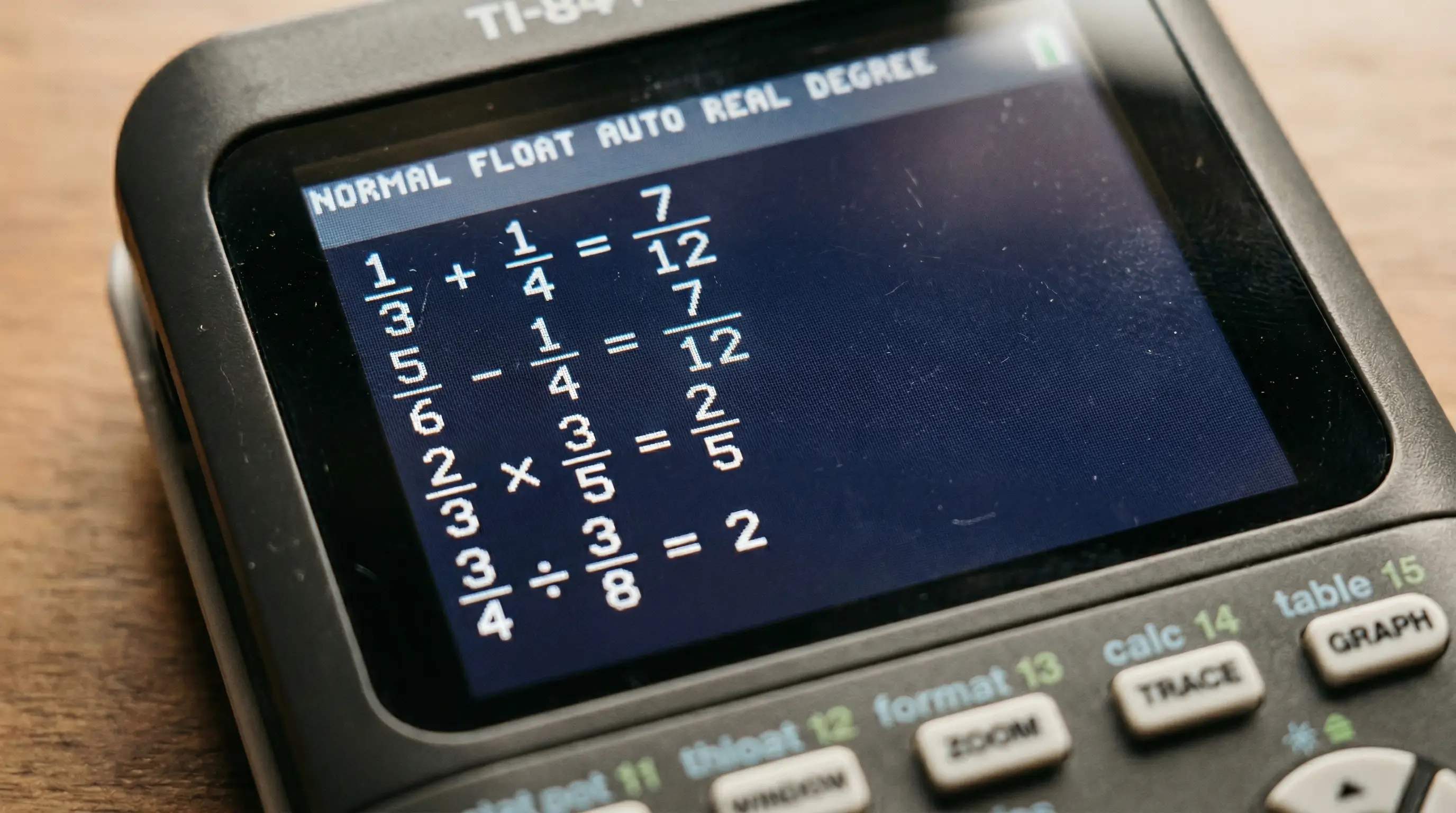
If the TI-84 returns a decimal after fraction arithmetic, it means the result is not a simple rational number — or you accidentally used the division key instead of the fraction template. Press MATH → ►Frac to try converting it back.
Quick Reference Table
| Operation | Example | Result | TI-84 Button After Each Fraction |
|---|---|---|---|
| Addition | 1/3 + 1/4 | 7/12 | + |
| Subtraction | 5/6 − 1/4 | 7/12 | − |
| Multiplication | 2/3 × 3/5 | 2/5 | × |
| Division | 3/4 ÷ 3/8 | 2 | ÷ |
| Simplify only | 24/36 | 2/3 | MATH → ►Frac |
| Fraction → Decimal | 3/4 | 0.75 | MATH → ►Dec |
🖩 Practice Fraction Problems Right Now
No physical TI-84 nearby? Use our free browser-based TI-84 Plus CE emulator. It has the full fraction template and MATH menu — practice every example from this guide without leaving your browser.
Launch Free TI-84 Calculator →Pro Tips for Working With Fractions on TI-84
These are the habits that separate students who struggle with fraction problems from those who breeze through them. They all come from years of watching students make the same mistakes — and fixing them.
-
1
Always Use the Template for Multi-Term Fractions
If your numerator or denominator contains addition, subtraction, or anything more than a single number — always use the ALPHA + Y= fraction template. This is not optional. A single parenthesis mistake in the division method can throw off your entire answer.
-
2
Use ►Frac After Every Division Problem
Get in the habit of pressing MATH → ►Frac after any calculation that might have a fraction answer. It takes one extra second and it instantly shows you the cleanest form of the answer — which is usually what a math teacher or test expects.
-
3
Navigate Inside the Template With Arrow Keys
Inside the fraction template, use the ▲ up arrow to go back to the numerator and ▼ down arrow to go to the denominator. After you finish typing the denominator, press the ► right arrow to move your cursor outside the fraction box — useful when you want to add something after the fraction (like + 5) before pressing ENTER.
-
4
Convert Between Fraction and Decimal Without Re-entering
After any result appears on screen, press MATH → 1: ►Frac to see it as a fraction, or 2: ►Dec to see it as a decimal. You can toggle back and forth as many times as you like. The calculator uses Ans (last answer) automatically — no retyping.
-
5
For SAT/ACT: Check Fraction Answers With ►Dec
On tests like the SAT, answer choices are sometimes listed as decimals. If you got a fraction answer and you are unsure which decimal option matches, press MATH → ►Dec. Convert your fraction to a decimal and compare directly. This saves time during difficult multiple-choice problems.
If you need a dedicated scientific calculator with excellent fraction support (especially for exams where graphing calculators are banned), check out our TI-30XS MultiView online calculator.
Frequently Asked Questions
Press [ALPHA] + [Y=] to open the fraction shortcut menu. Select 1: n/d. A fraction box appears — type the numerator, press the down arrow, type the denominator, then press [ENTER]. This is the safest and most reliable method for entering any fraction on the TI-84.
Enter the fraction using the n/d template (ALPHA + Y=). The TI-84 automatically returns it in simplified form when you press ENTER. Alternatively, type any decimal result, then press [MATH] → 1: ►Frac → [ENTER]. The calculator converts the decimal to its simplest fraction form.
After your fraction result appears on screen, press [MATH] and select 2: ►Dec. Press ENTER. The fraction converts to its decimal equivalent instantly. For example, 3/4 becomes 0.75, and 5/8 becomes 0.625. You can also just divide the numerator by the denominator directly using the ÷ key.
The easiest way is to add the whole number and fraction: 3 + [n/d template: 1/2], then press ENTER. The result is 7/2. You can also use the Un/d template (ALPHA + Y= → 2: Un/d) which gives you separate boxes for the whole number, numerator, and denominator. Either way works correctly.
This usually means you entered the fraction using the division key (÷) instead of the fraction template. Press [MATH] → 1: ►Frac → [ENTER] to convert the decimal to a fraction. If it still shows a decimal, the result is an irrational number (like √2 or π) that cannot be expressed as a simple fraction and will always display as a decimal.
Yes — you can use the fraction template inside the Y= editor too. Press [Y=] to open the function editor, then use [ALPHA] + [Y=] to open the fraction template within the function. For example, to graph y = (x + 1)/(x − 2), use the n/d template with x+1 in the numerator and x−2 in the denominator. The resulting graph will be of a rational function.