
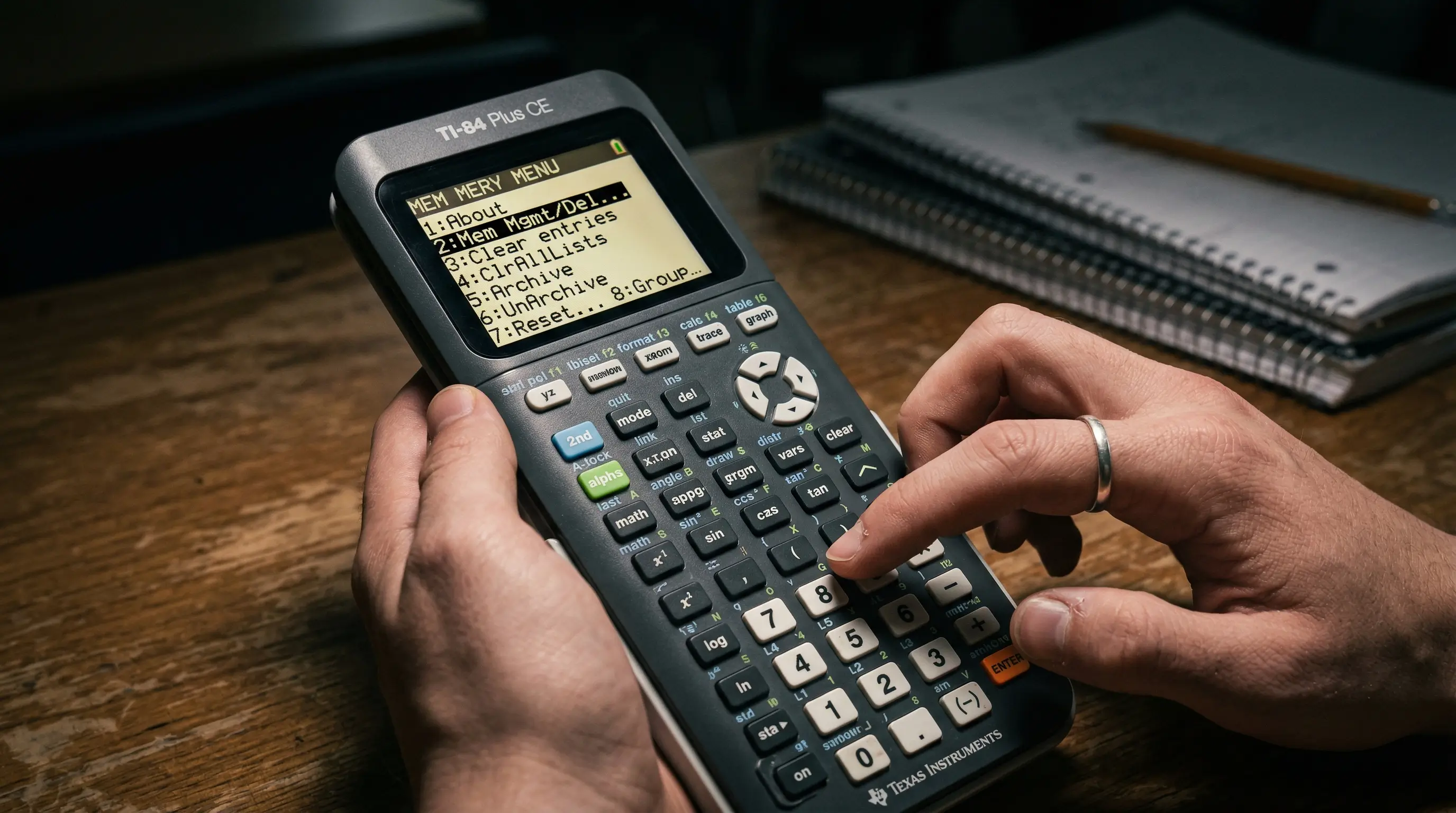
⚡ Quick Answer
To reset a TI-84, press [2nd] + [MEM], select 7 (Reset), then choose your reset type. For a standard reset (most common), pick 1 (All RAM) → 2 (Reset). This clears variables, programs, and settings but keeps your OS. For a deeper reset, choose 2 (Archive) → 2 (Reset). Keep reading to understand which reset you actually need and what each one deletes.
Why Would You Reset a TI-84 Calculator?
There are several very common reasons students and teachers reset a TI-84. None of them are unusual — this happens all the time:
- Calculator is acting slow or glitchy. Leftover data, corrupted variables, or too many programs filling the RAM can make a TI-84 sluggish or cause it to freeze. A RAM reset usually fixes this in seconds.
- Preparing for a test or exam. Many exams require students to clear their calculators before entering the testing room. A RAM reset wipes variables, programs, and notes that could give an unfair advantage.
- Giving the calculator to a new student. If you are handing your calculator to a sibling, classmate, or selling it, you want to clear all your personal data first.
- Something is broken and nothing else works. If a menu is stuck, the calculator will not respond normally, or an unknown error keeps appearing, a reset often fixes the underlying problem.
- Clearing old AP exam programs. Programs loaded for one exam may interfere with a future exam. A reset gives you a clean slate each time.
The TI-84 has three separate reset options, each with a different level of power. Choosing the wrong one can delete things you want to keep. Read the next section carefully so you choose the right one.
3 Types of TI-84 Resets — Which One Do You Need?
Think of the TI-84's memory as two separate boxes: a RAM box (short-term memory) and an Archive box (long-term safe storage). Each reset targets one or both of these boxes.
RAM Reset
Clears short-term memory only — variables (A, B, X…), lists (L1, L2…), programs in RAM, and current graph/window settings.
Safest OptionArchive Reset
Clears long-term stored files — archived programs, pictures, apps, and custom OS components saved in Archive memory.
Moderate — Use CarefullyAll Memory Reset
Clears everything — both RAM and Archive — and restores the calculator to the state it was in when it left the factory. The OS stays, but all data is gone.
Nuclear OptionFor 95% of students, a RAM Reset is all you need. Only do an Archive Reset or All Memory Reset if someone specifically tells you to — or if you are completely certain you do not need any of your saved files.
How to Do a RAM Reset (Step by Step)
This is the most common reset. It clears temporary data but leaves your archived programs and apps untouched. Use this before a test, when the calculator feels slow, or when you just want a clean workspace.
-
1
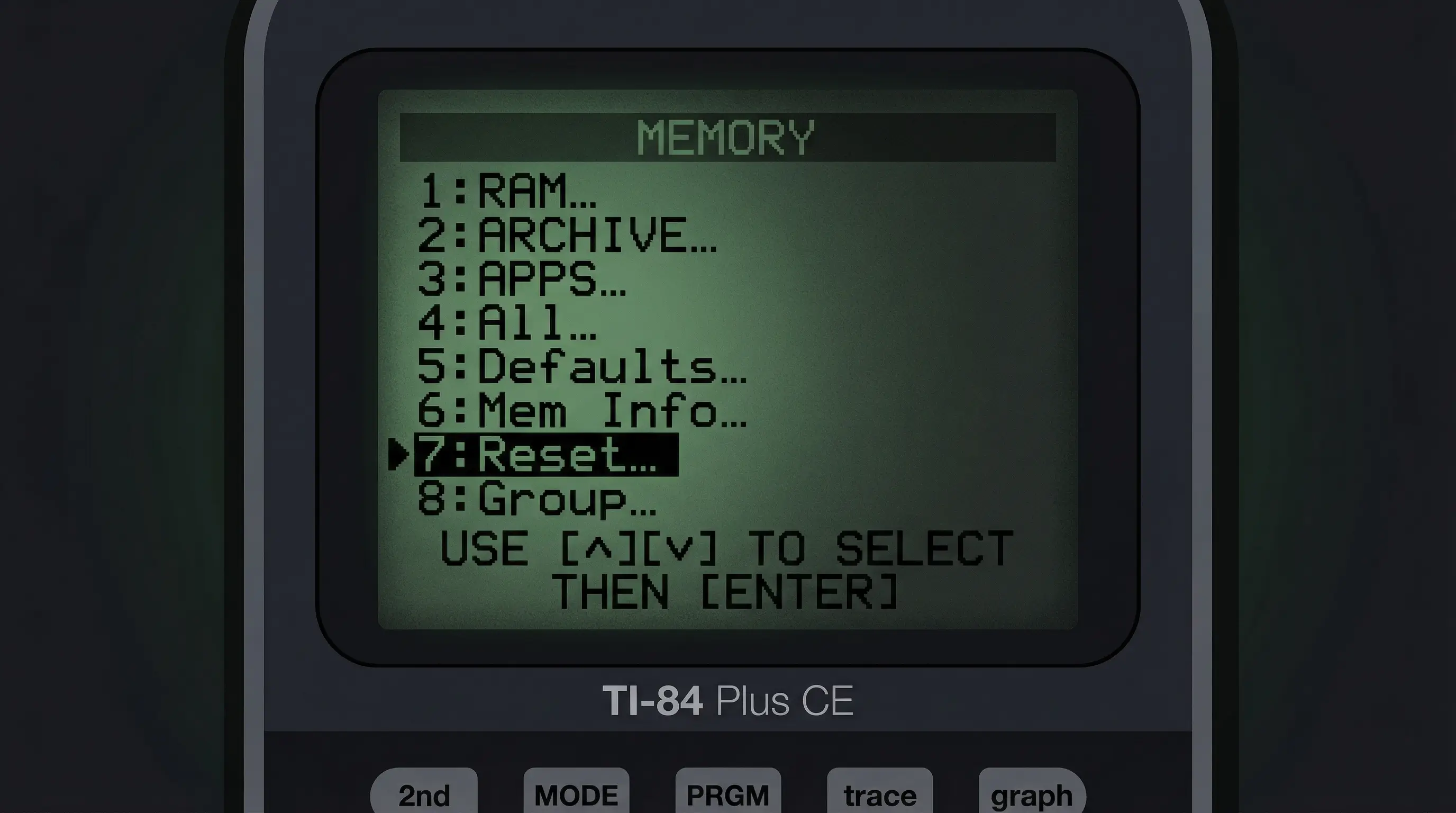
Press [2nd] + [MEM] to open the Memory Menu
Press 2nd, then press the + key (which doubles as the MEM key — you will see a small [MEM] label above it). The Memory Management menu appears on screen.
-
2
Select option 7: Reset
Press 7 to select Reset. A new menu appears with two tabs: RAM and ARCHIVE.
-
3
Select 1: All RAM
Press 1 to select All RAM. A confirmation screen appears that says "Resetting RAM will delete all data in RAM. Are you sure?"
-
4
Press 2: Reset to confirm
Press 2 to confirm. The calculator resets and returns to the home screen. You will see a message: "RAM cleared". The reset is complete.
The RAM reset takes about 2 seconds. When it is done, the calculator looks and behaves like new. Your apps, language files, and archived programs are still there — only RAM data was cleared.
How to Do an Archive Reset
The Archive is the calculator's long-term safe storage. Programs and files you move to Archive survive a normal RAM reset. To clear the Archive, follow these steps:
-
1
Press [2nd] + [MEM] → 7 (Reset)
Same starting point as a RAM reset — press 2nd + + to open Memory, then press 7 for Reset.
-
2
Press the right arrow to switch to ARCHIVE tab, then press 1: All Archive
On the Reset screen, press ► to switch from the RAM tab to the ARCHIVE tab. Then press 1 to select All Archive.
-
3
Press 2: Reset to confirm
Press 2 to confirm. The calculator clears all archived files and returns to the home screen. All apps, archived programs, and stored pictures are now gone.
Warning: An Archive reset permanently deletes apps that came pre-installed on your calculator (like Inequality Graphing or Transformation Graphing) if they were stored in Archive. You would need to reinstall them using TI Connect CE software on your computer. Only do this if you are sure.
How to Do a Full Factory Reset (All Memory)
This is the nuclear option. It wipes everything — RAM and Archive — and returns the TI-84 to the exact state it was in when it first came out of the box. The operating system (OS) stays, but every single thing you have stored is gone forever.
-
1
Press [2nd] + [MEM] → 7 (Reset)
Open the Memory menu with 2nd + +, then press 7.
-
2
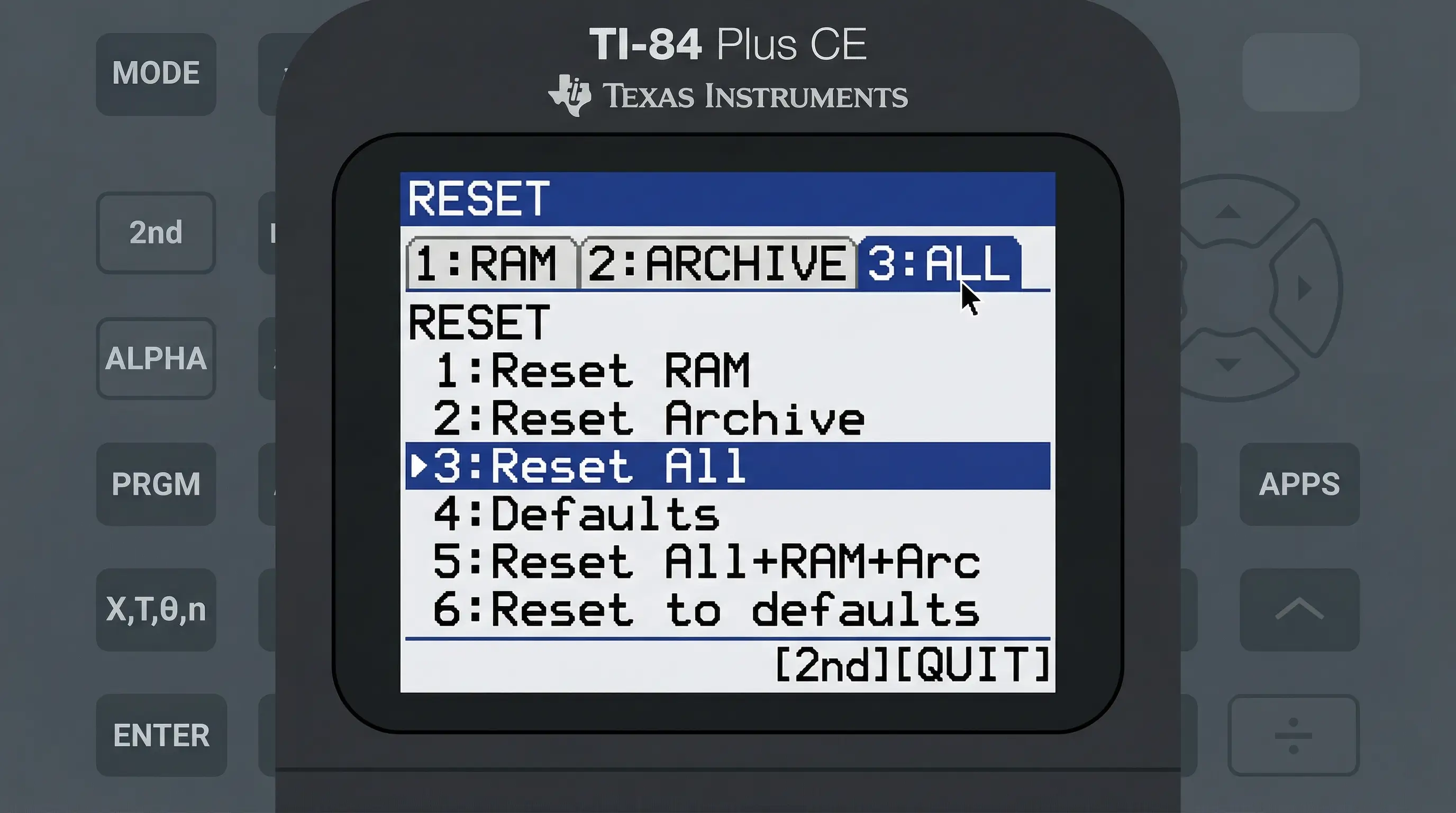
Press the right arrow twice to reach ALL tab, then press 1: All Memory
Press ► twice to reach the ALL tab. Press 1 to select All Memory.
-
3
Press 2: Reset to confirm
Press 2 to confirm. The TI-84 will reset completely. It may take a few extra seconds compared to a RAM reset. When it finishes, you will see: "Defaults restored" or similar. The calculator is now factory fresh.
What Gets Deleted vs What Stays Safe
This table shows you exactly what each reset type does to your calculator's data. Read this before you reset so you know what you are getting into:
| Item | RAM Reset | Archive Reset | All Memory |
|---|---|---|---|
| Variables (A, B, X, Y…) | ❌ Deleted | ✅ Safe | ❌ Deleted |
| Lists (L1, L2, L3…) | ❌ Deleted | ✅ Safe | ❌ Deleted |
| Programs stored in RAM | ❌ Deleted | ✅ Safe | ❌ Deleted |
| Programs moved to Archive | ✅ Safe | ❌ Deleted | ❌ Deleted |
| Apps (e.g. Inequality Graphing) | ✅ Safe | ❌ Deleted | ❌ Deleted |
| Graph equations (Y=) | ❌ Deleted | ✅ Safe | ❌ Deleted |
| Window settings | ❌ Deleted | ✅ Safe | ❌ Deleted |
| Calculator mode settings | ❌ Reset to default | ✅ Safe | ❌ Reset to default |
| Operating System (OS) | ✅ Safe | ✅ Safe | ✅ Safe |
The OS (operating system) is never deleted by any reset. No matter which reset you choose, your TI-84 will still turn on and work normally after. The only way to affect the OS is to flash new firmware using TI Connect CE — which is a very different process from a reset.
Back Up Your Data Before Resetting
If you have programs, notes, or custom data you want to keep, always back them up before resetting. Here is how:
Method 1: TI Connect CE (Computer Backup)
Download the free TI Connect CE software from Texas Instruments' website. Connect your TI-84 Plus CE to your computer using the included USB cable. TI Connect CE lets you:
- Copy all programs, apps, and lists to your computer
- Restore everything back to your calculator after a reset
- Update your OS firmware
This is the safest and most complete backup option. It only takes a few minutes and the software is 100% free.
Method 2: Transfer to Another Calculator
If you have a second TI-84, you can send programs directly from one calculator to another using the TI link cable (a small cable that plugs into both calculators). Press 2nd + LINK on both calculators to access the link menu for transfers.
Method 3: Archive Your Programs
If you only want to survive a RAM reset (not a full reset), you can move your programs to Archive first. In the Program Editor, open a program, go to the first line, and use the Archive option. Programs in Archive are not touched by a RAM reset.
Good habit: Back up your calculator to your computer at least once a month, especially during the school year. It takes 2 minutes and can save you hours of work if something goes wrong.
What Happens After a Reset — What to Expect
After a RAM reset, your TI-84 goes back to its default state. Here is what you will notice:
- The home screen is clean. No previous calculations showing.
- Mode settings are back to defaults. The calculator is in Normal notation, Radian mode (or Degree, depending on your model's default), and Function graph mode.
- All variables are cleared (A = 0, B = 0, X = 0, etc.).
- Y= equations are cleared. Press [Y=] and all slots are blank.
- Memory is freed up. Available RAM is now at its maximum — the calculator should feel noticeably faster.
After a full reset, the same things happen — plus all your apps and archived programs are gone. The very first time you turn it on after an All Memory reset, you may be asked to set the clock and language. Just follow the on-screen prompts.
If resetting feels like too big a step or you want to practice the STAT, GRAPH, and other menus without risking any data, use our free TI-84 Plus CE online emulator instead. It resets itself every time you refresh the page — perfect for practice runs.
🖩 No Calculator? Use Our Free TI-84 Online
All 4 reset steps above work exactly the same on our free browser-based TI-84 Plus CE emulator. Try it — and when you're done practicing, just refresh the page for an instant fresh start.
Launch Free TI-84 Calculator →Frequently Asked Questions
Press [2nd] + [+] to open the Memory menu. Select 7 (Reset). For a standard RAM reset (most common), press 1 (All RAM) → 2 (Reset). Your calculator clears in about 2 seconds and shows "RAM cleared" when done.
RAM holds temporary data — variables, lists, programs in use, and current graph settings. Archive is long-term safe storage — archived programs, apps, and pictures. A RAM reset only clears RAM. An Archive reset clears Archive. "All Memory" reset clears both. For most situations, a RAM reset is all you need.
It depends. Programs stored in RAM are deleted by a RAM reset. Programs that were archived (moved to Archive memory) survive a RAM reset but are deleted by an Archive reset or All Memory reset. Before resetting, check if your programs are in RAM or Archive — and back them up to a computer using TI Connect CE if needed.
A RAM reset is what most testing rooms require. This clears all stored programs, variables, and notes from RAM while keeping the OS intact. Press [2nd] + [+] → 7 (Reset) → 1 (All RAM) → 2 (Reset). Check our guide on using TI-84 on the SAT for specific exam calculator rules.
No. A reset is permanent — there is no undo. Once you confirm, deleted data cannot be recovered from the calculator itself. This is why backing up to a computer with TI Connect CE before resetting is so important. Always back up first, then reset.
No. The TI-84 operating system is stored in a protected part of memory that no reset can touch. Your calculator will still turn on, work normally, and display the same OS version after every type of reset. Only intentionally flashing new firmware via TI Connect CE can change the OS.